VMware Restore
Restore VMware
Restore the virtual machines from the IDrive account to your VMware environment in a fast, secure, and reliable way.
To restore a virtual machine using Online Restore,
- Sign in to the IDrive application.
- Go to 'Server Backup' > 'VMware' > 'VMware restore'> 'Online Restore'.
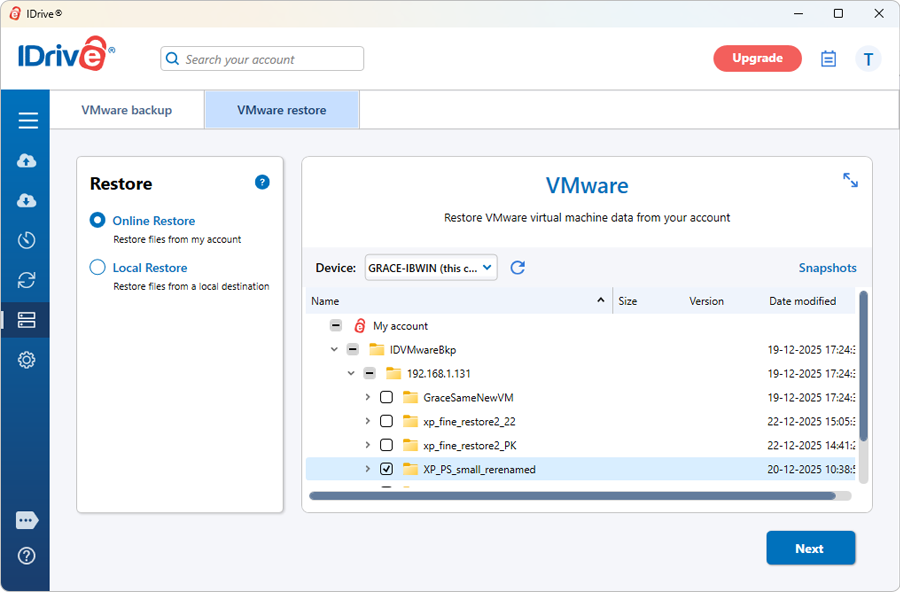
- Select the VM from 'IDVMwareBkp' backup set folder and click 'Next'.
- In the 'Restore VMware virtual machine data' popup, choose one of the following restore options:
- Restore to VMware vSphere, or
- Restore as virtual disk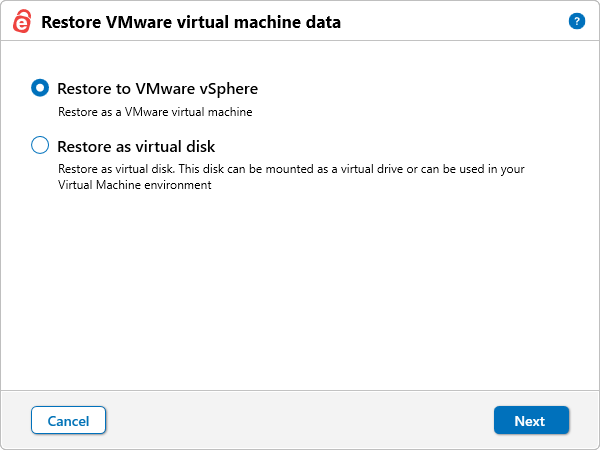
- Choose the required virtual disk format (Raw image, VHD, or VHDX).
- Select the destination folder where the virtual disk should be restored.

- Click 'Finish' to start the restore.
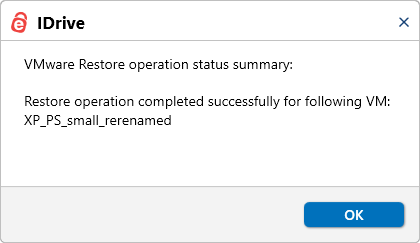
On successful completion, the restore summary is displayed. - Click 'Next'
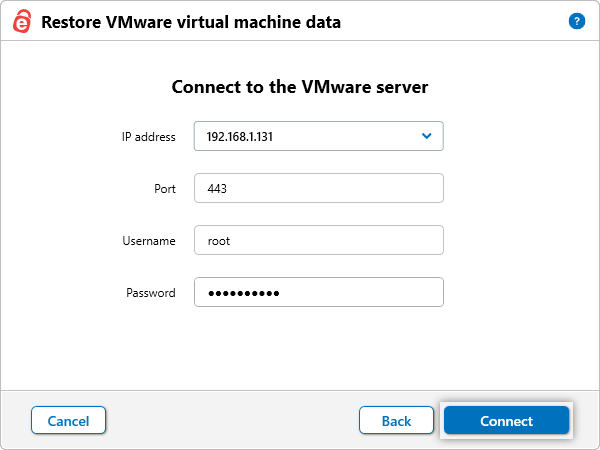
- Enter valid VMware server credentials and click 'Connect'.
- If the credentials are for vCenter, clicking 'Connect' displays the 'Target Host' dropdown. Select the required ESXi host and click 'Next'.
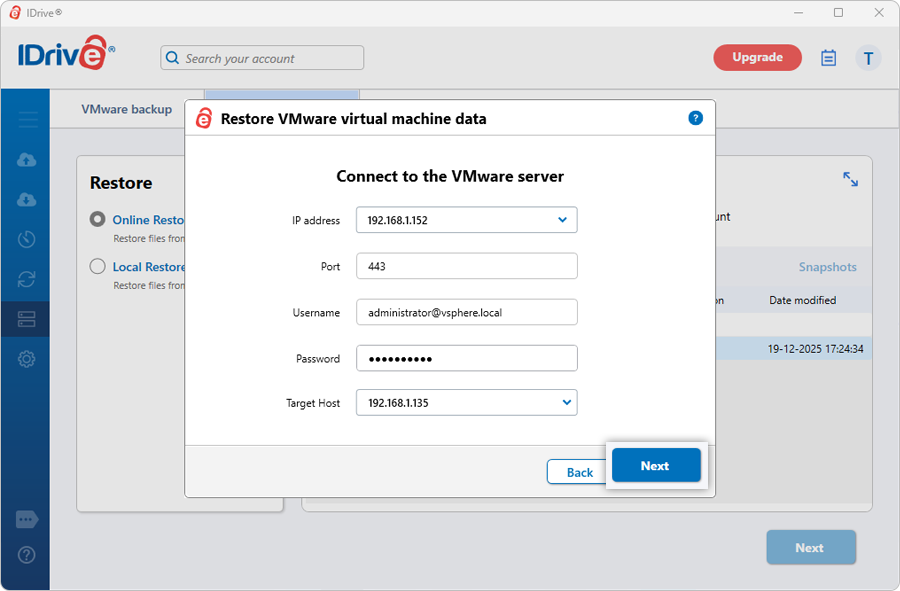
- If the credentials are for ESXi, clicking 'Connect' will open the Restore VMware virtual machine data' popup.
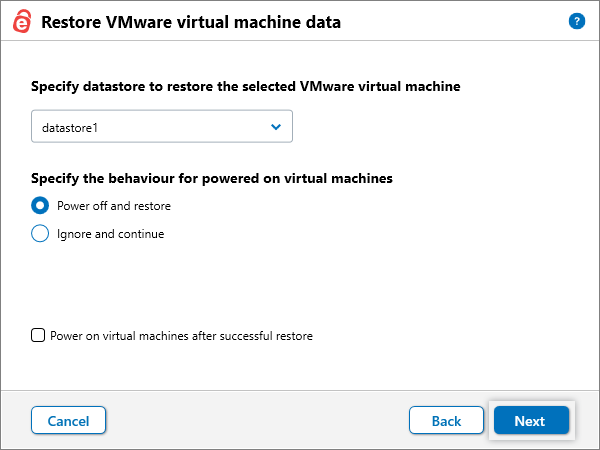
- Select the datastore where the virtual machine should be restored.
- Choose a power state option:
- Power off the VM before restore
- Ignore and continue (restore fails if the VM is powered on)
- Power on the VM after successful restore - Click 'Next'.
- By default, 'Existing machine' is selected.
- To overwrite an existing VM, select 'Overwrite the existing virtual machines'.
- To restore as a new VM, modify the VM name under 'Restore as' and enter a valid name.
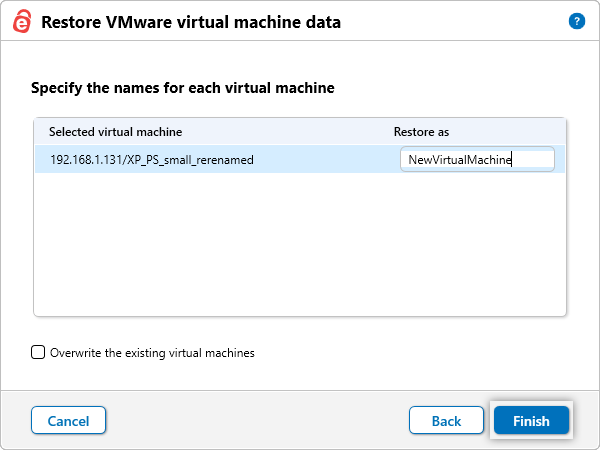
- Click 'Finish' to start the restore. On successful completion, the restore summary is displayed.
If 'Restore as virtual disk' is selected:
If 'Restore to VMware vSphere' is selected:
The 'Restore VMware virtual machine data' popup appears.
To restore a virtual machine using Local Restore,
- Sign in to the IDrive application.
- Go to 'Server Backup' > 'VMware' > 'VMware restore'> 'Local Restore'.
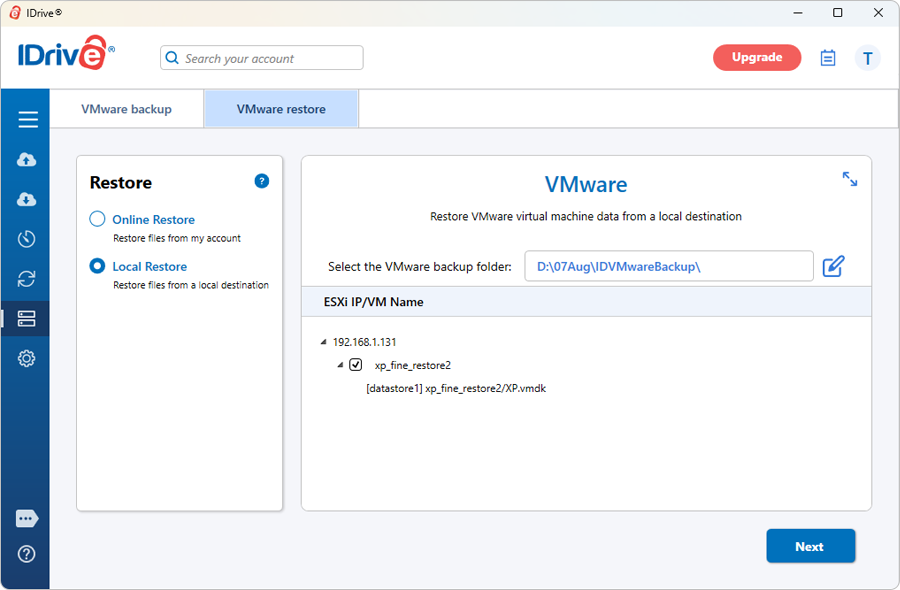
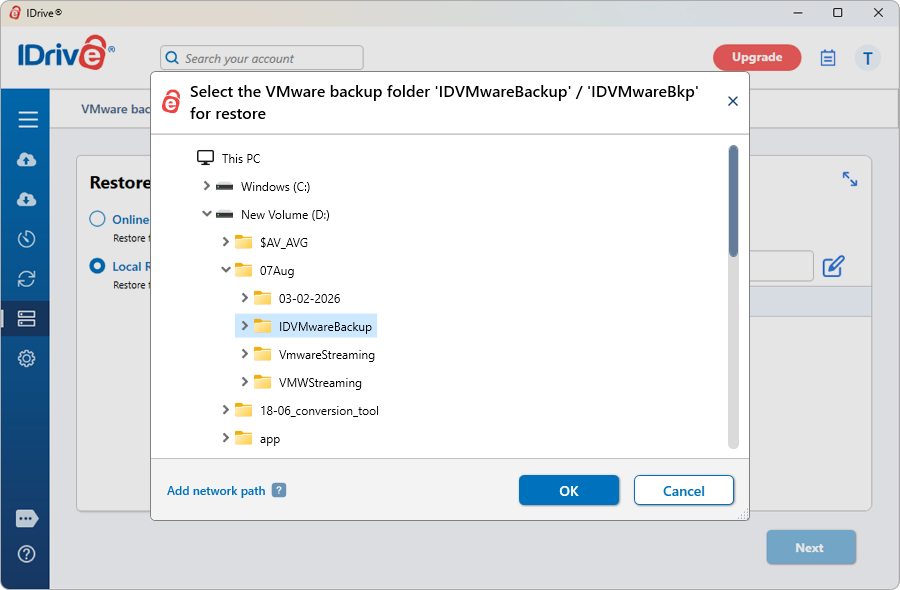
- Locate and select the 'IDVMwareBackup' or 'IDVMwareBkp' backup set folder from your local drive.
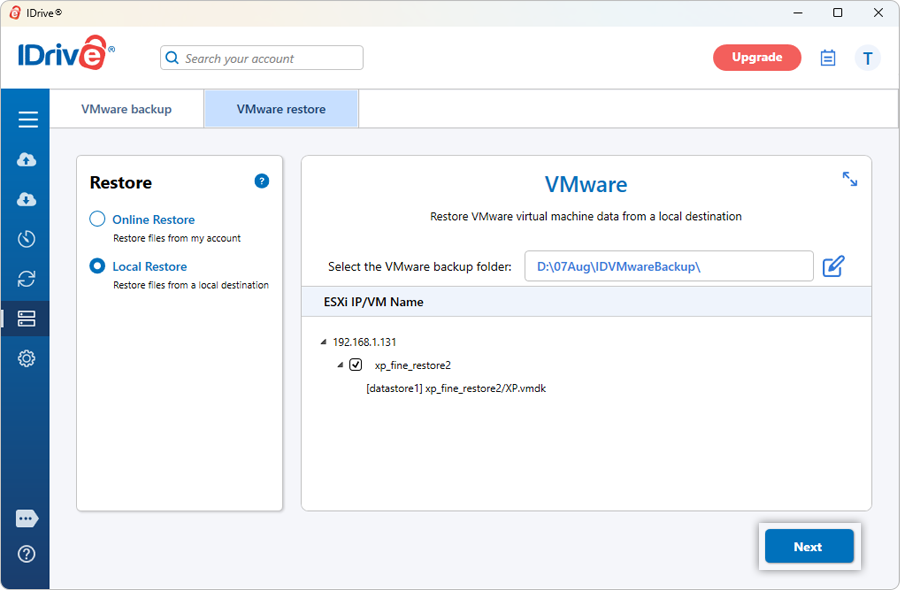
- Select the required VM from the backup set and click 'Next'.
- Enter valid VMware server credentials and click 'Connect'.
- If the credentials are for vCenter, clicking 'Connect' displays the 'Target Host' dropdown. Select the required ESXi host and click 'Next'.
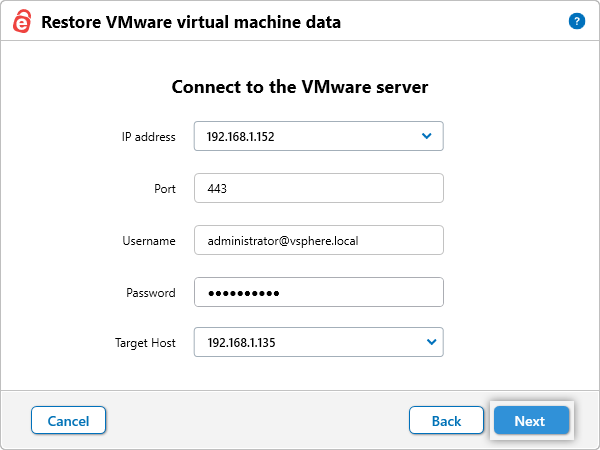
- If the credentials are for ESXi, clicking 'Connect' takes you directly to the 'Restore VMware virtual machine data' popup.
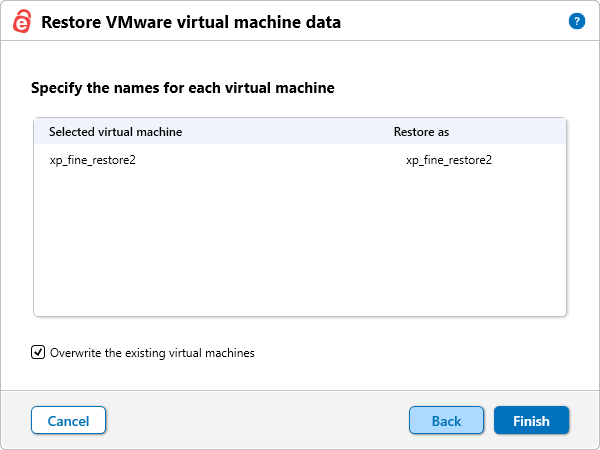
By default, 'Existing machine' is selected. - To overwrite an existing VM, select 'Overwrite the existing virtual machines'.
- To restore as a new VM, modify the VM name under 'Restore as' and enter a valid name.
- Click 'Finish' to start the restore.
On successful completion, the restore summary is displayed.
View the steps to backup VMWare.